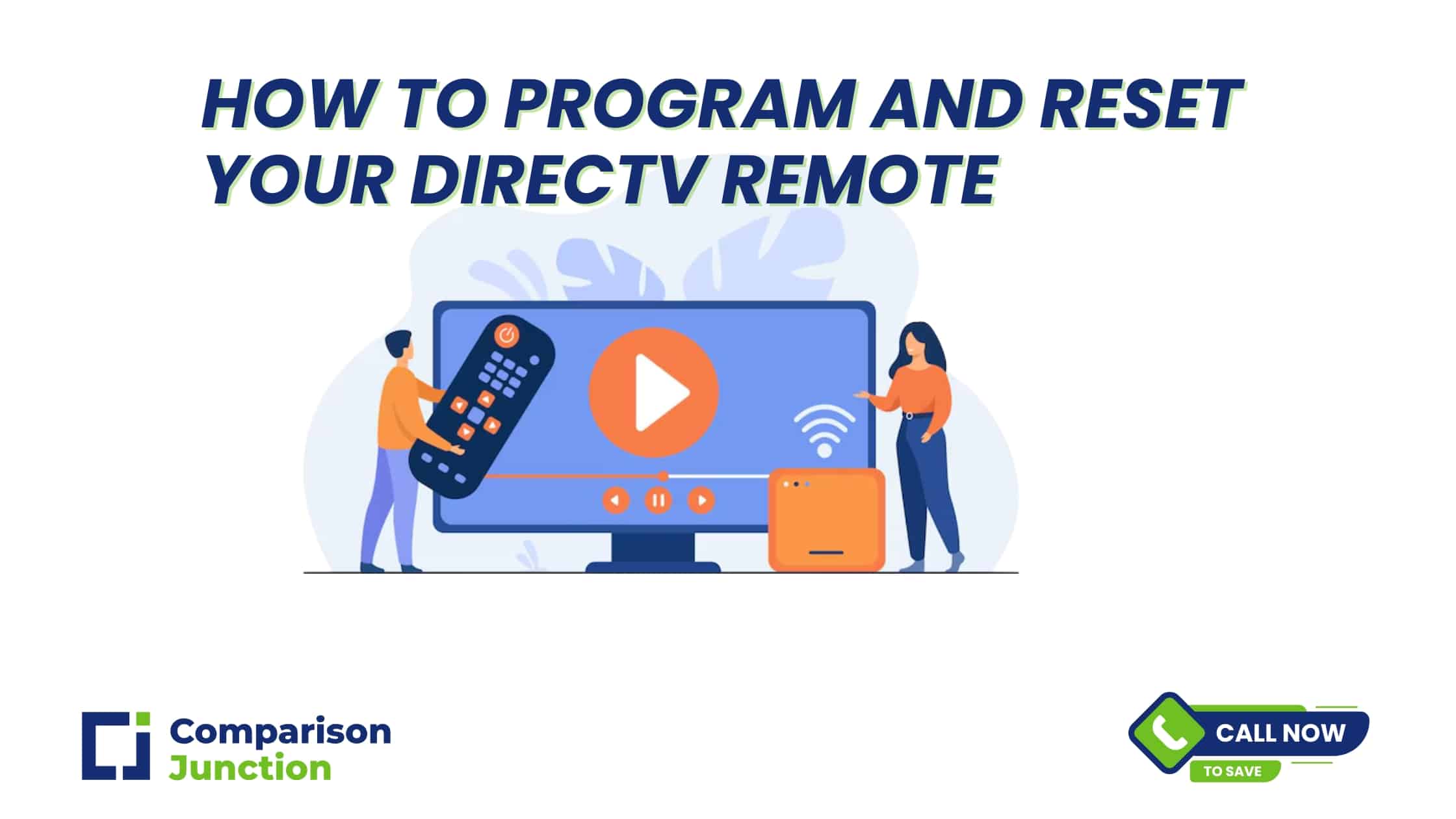
If your DIRECTV remote isn’t doing what it should, volume not working, channels not changing, or you’ve replaced your TV or receiver, knowing how to program and reset your DIRECTV remote can save you frustration and time. Whether you have a Genie remote or a Universal / RC‑series remote, the process is fairly straightforward. Let’s walk through the steps, common issues, and helpful tips so you can get back to relaxing in front of the TV without fuss.
What You’ll Need Before You Start
- Your DIRECTV remote (Genie, Universal, or RC‑series).
- The DIRECTV receiver/box powered on.
- Fresh AA batteries in the remote.
- Access to your TV and probably the TV brand code (for some models).
Having those ready will help you avoid interruptions during the programming or resetting process.
Why You Might Need To Program Or Reset Your Remote
There are several reasons why your remote might need programming or resetting:
- Remote lost connection after a power outage.
- New equipment (receiver, TV) installed.
- Remote buttons not responding correctly.
- Remote accidentally reset or misconfigured.
Knowing how to program and reset your DIRECTV remote means you can fix most common issues yourself.
How To Program Your DIRECTV Remote
Here are the steps to program your DIRECTV remote to control your receiver and/or your TV (volume, power). The exact sequence might vary slightly depending on your remote model (Genie, Universal, RC‑series), but the basic outline remains similar.
- Turn on your receiver and TV. Make sure both are powered and on the correct input/source.
- Access the remote settings.
- Press “MENU” on your remote.
- Go to “Settings” and select “Remote Control”.
- Select Program Remote (or similar).
- Select the device type. Whether you want the remote to control your TV, audio device (AV1, AV2 etc.), or only the DIRECTV receiver, choose accordingly.
- Choose the brand or enter the device code. Some remotes will let you search automatically, others require you to enter a five‑digit code for your TV brand. If you don’t know the code, DIRECTV has code lookup resources.
- Test the remote. Try turning off the TV, adjusting the volume, or changing channels. If it works, you're done. If not, try another code or repeat the programming process.
How To Reset Your DIRECTV Remote
If programming doesn't solve the issue, you may need to reset your DIRECTV remote. Resetting restores the remote to factory defaults (clearing all programming). Here's how to do that:
- Hold down the MUTE + SELECT buttons simultaneously until you see the remote’s LED light blink (green) twice.
- Enter the reset code, for many models, entering 981 after that will perform the factory reset. The LED should blink a few times.
- After reset, you may switch between IR (infrared) or RF modes if your remote supports both. For example, the Genie remotes often allow you to apply IR/RF setup.
- Re‑program the remote to the TV or other devices as described above. Resetting wipes out previous programming, so you’ll need to go through the “program remote” steps.
What To Do If It Still Doesn’t Work
If after programming and resetting your remote you're still having trouble, try these troubleshooting tips:
- Check the batteries. Old or weak batteries often cause intermittent issues.
- Ensure a clear line‑of‑sight. For IR remotes especially, make sure nothing is blocking the path between the remote and the receiver. Clean the infrared emitter on the remote and the sensor on the receiver.
- Verify mode switch position. Many universal remotes have a mode switch (DIRECTV, TV, AV1, AV2 etc.). Make sure it’s set correctly depending on what device you're trying to control.
- Reset the receiver. Sometimes the issue is with the receiver itself. Most DIRECTV receivers have a reset button (often red, inside an access‑card door or on the side). Press it, or unplug the receiver for 15 seconds, then plug it back in.
Learning how to program and reset your DIRECTV remote puts you in control of your home entertainment setup. It lets you fix issues fast, without needing to call support. After a reset, though, remember you’ll need to reprogram everything, device control, volume, even TV brand codes if used.
Keep your remote’s model info handy, note the brand of devices you use, and keep spare batteries around. With these tools, you can handle most common remote issues on your own.